If you are experiencing problems accessing the Windows Store, if you cannot update Windows apps, or if Windows live tiles don’t update on Start screen, here is the solution.
Most people don’t have problems with the Windows Store, Windows apps or live tiles, but some do and it is one of the most commonly posted problems in many Windows forums.
There isn’t a single solution that fixes everyone’s fault no matter what it is and you will just have to work through the suggestions outlined here until you find the one that works for you.
Bear in mind that there is a major Windows 10 update twice a year and that fixes a lot of problems (and causes some, but that is another story). If you can’t repair the Windows 10, just wait for the update.
1 Reset the Store
Sometimes the solution to a software problem is to uninstall it and reinstall it. However, the Store app is part of Windows and cannot be uninstalled. However, it can be reset.
Press Windows+I to open the Settings app and click Apps. Apps & Features should be automatically selected, so scroll down the list to Microsoft Store. and click the Advanced options link.
The Store can be terminated if it cannot be closed in the usual way, and then reset. In theory, this should be sufficient, but sometimes it is not. However, there are more possible fixes.
2 Restore the Windows Store icon
If you cannot find the Windows Store, click in the search box in the taskbar and type ‘microsoft store’. It should then appear in the search results. Right click it and select the options to pin it to Start and the taskbar.
3 Command prompt reset
There is a hidden reset command in the Windows folder that clears the Store caches and it has solved some people’s problems. Press Windows+R to open the Run box and enter wsreset.exe to reset the store. This can also be run by typing wsreset into the search box on the taskbar.
Restart Windows afterwards and try the Windows Store again
4 Powershell reset
Go to Start, Windows Powershell. Right click Windows Powershell and select More, Run as administrator. In the Powershell window, enter all on one line:
Get-AppXPackage -AllUsers | Foreach {Add-AppxPackage -DisableDevelopmentMode -Register “$($_.InstallLocation)\AppXManifest.xml”}
followed by:
wsreset.exe
5 Use the Apps Troubleshooter
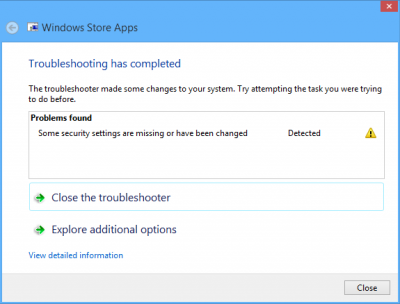
Microsoft has a Windows Store Apps troubleshooter that can identify many problems and automatically fix them. Open the Control Panel and click Troubleshooting. Click View all on the left and then double click Windows Store Apps.
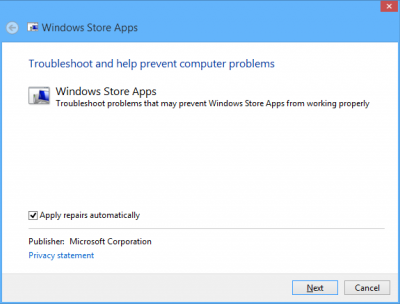
When it has finished, it will tell you if any problems were found and fixed.
6 Sign out, sign in
Open the Windows Store app and click your picture in the top right corner. Then click your name. In the window that pops up is an option to sign out. Click it. Close the Windows Store app, wait a couple of seconds, then start it and sign back in.
7 Check the time, language, region
Windows can become confused if the time is not right or the region is different to the one you are actually in. Open the Settings app and click Time & Language. On the left, select Date & time, Region & language, and Speech. Check every option and click every link because there are many places where regional settings are stored.
When you have done that, open the Control Panel and click Region. Click every tab and every button and check every setting. There are dates, times, location, currency and more - too many to list here so carefully check everything you can find.
8 Disable security and privacy
Security software should not affect the Windows Store, but if you have tried everything else, it is worth disabling any security software that is running and try the Windows Store without it.
Press Windows+I to open the Settings app and click Privacy. Turn on all the switches and try the Store again. It should not make any difference, but try it and see.
Be the first to comment