
It can be hard keeping files on the PC’s drive organised and it is easy for them to become an unruly mess. There could be duplicate files wasting space. Delete them!
Is it time time to sort out the mess of files and folders on the drive and delete the duplicates? They are more common than you might think and they can be Microsoft Office documents, photographs taken with your phone or digital camera, music, or other types of files. Sometimes there are good reasons for having a duplicate of a file, but often it is accidental and duplicates can be created in various ways.
With digital photography, multiple apps and services want to automatically upload every photo you take to online storage or a photo sharing service. The storage and services might then be synced with a folders on your PC, you plug in a digital camera or phone, and you could end up with more than one copy of images.
You might make copies of images for editing and end up with two or more, you might transfer photos from a digital camera, back them up, restore a backup, buy a new computer, restore to that and so on. It is easy to lose track images and how many copies there are.
The same is true with videos taken on mobile phones and digital cameras. After numerous syncs, backups, edits, and transfers to new PCs or tablets, you can end up with multiple copies. Documents and music can also become duplicated in various ways.
Duplicates can take up significant drive space if you use a solid state drive (SSD) and many PCs are sold with 128 GB or 256 GB drives that are quickly filled.
If you suspect there may be duplicate files one the drive wasting space, there are several utilities that are able to find them and delete them, such as the free CloneSpy and AllDupe.
Find duplicate files with CloneSpy
Download CloneSpy and when it is installed, there is a choice of a standard installation or a portable one. Whenever there is an option to install a portable version of a program, I always choose it. It does not make any changes to Windows and removing it is as simple as deleting the folder it is in. Portable apps can be run from the Downloads folder.
When CloneSpy is started, it looks like the screen shot below. There are three windows – Pool 1, Pool 2 and Checksum.
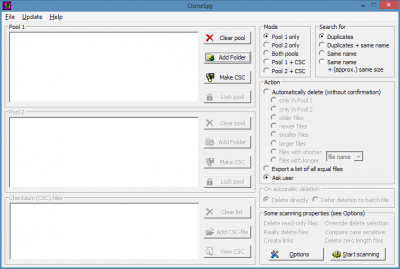
To use it at its most basic level, only Pool 1 at the top is needed. Click Add Folder.
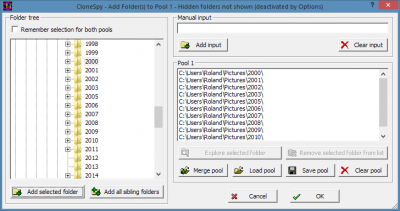
You can browse the disk drive, select folders and click Add selected folder. This adds it to the Pool 1 window on the right. A Pool is basically just a list of folders to scan for duplicates. You can see that there are options to load, save and merge pools, so you could save the list of folders you are going to scan to save you the bother of having to select them again the next time you scan for duplicates.
I have photos in folders with one for each year, so I added them all. You might have different folders and you don’t have to scan for photo duplicates because it works with all file types.
After adding the folders to scan to Pool 1, CloneSpy looks like this:
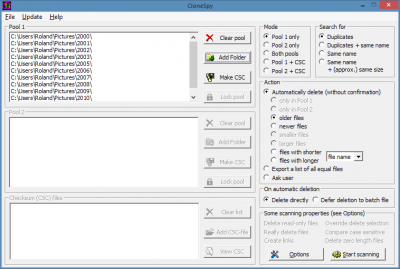
The Mode at the top is Pool 1 only. The Search for setting is Duplicates and this is best because it looks at the contents of files and not the name. You might have two photos called train.jpg in two different folders that are of different trains, and you don’t want to delete them.
The Action section lets you choose what happens to duplicate files. Ask user is tempting, but duplicates can run into the hundreds and you don’t want it to ask you about every single one. Select Automatically delete and choose either older files or newer files.
Click the Options button to modify any of the program settings. There are too many to mention, but this is a good example of what is available:
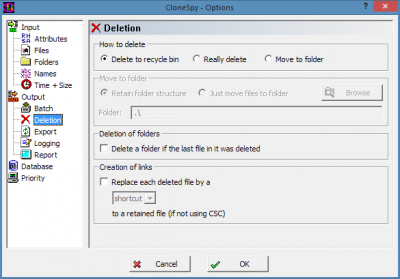
What do you want to do with duplicate files? Deleting them to the Recycle Bin is a good choice because if you need to, files can be recovered from there if it should make a mistake and delete a file you wanted to keep. Another good option is Move to folder, and this would enable you to check the files before (manually) deleting them.
Here is the result of running CloneSpy:
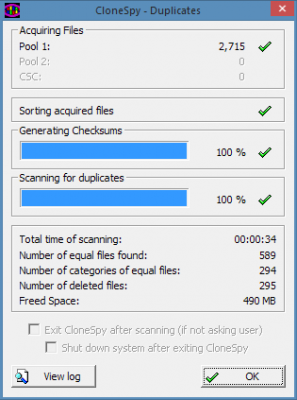
A total of 2,715 files were scanned and 295 files were deleted. They are in the Recycle Bin as selected in the options, and 490MB of disk space was reclaimed (strictly speaking, only when the Recycle Bin is emptied because they are in there).
Find duplicate file with AllDup
There are standard and portable versions of this free utility and I chose the portable one. Just download AllDup and unzip it, then open the folder and run it.
On the left is a list of common folders and they are the most likely places where you will store files. More folders or drives can be added and you can remove folders you don’t want.
The checkboxes on the left are used to select the folders to search for duplicate files. The first item on the right chooses whether to search subfolders and the last column with the padlock at the top enables folders to be locked so files cannot be deleted from them. This could be used to protect valuable files you always want to keep.
Select Search Method and the Comparison Criteria can be selected, such as File name, File size, File extension and so on. These can be finely tuned. For example, if you select File name there are options to compare only the start if the filename, ignore the end, ignore certain characters, or consider them a match if filenames are 90% the same, and so on. It also possible to ignore filenames and find duplicate content.
The results are displayed after performing a search and you can browse the files and view previews where applicable, such as with photos. Checkboxes enable the duplicate you don’t need to be selected and then all can be removed in one go.
These two tools are both good in their own ways and because they are free, there is no reason not to have both on your PVC. You will then have duplicate duplicate finders! You will save more space than they occupy though, and you could try both and just keep your favorite.
I use DuplicateFilesDeleter,it’s usefull to get rid of a redundant sum of files.
DuplicateFilesDeleter is expensive. Why pay a lot of money for it when CloneSpy is free?
I have used this program to find duplicate files on my hard drive. The program is a good and comfortable, but too long to work. To search for duplicates I prefer to use Duplicate Remover Free. It is easier but faster.
Delete duplicate files with ease!
Try DuplicateFilesDeleter program and get rid of duplicate files.
Thank you!
I would recommend you to try Duplicate Files Deleter program.
I would recommend you to try Duplicate Files Deleter program.
The situation could be frustrating and can go a long way to slowing down your system’s speed. What do you do at this time? There is need to delete those unnecessary files.