Do you use Microsoft OneDrive to create and store documents like Word, Excel and other files? It’s frustrating when you lose one, but there is a way to recover lost files. No software required.
New articles are posted
on rawinfopages.co.uk
Go Windows PC articles
Whether you use Microsoft Word on your computer and save files to the OneDrive folder on the PC’s disk drive, or use the free web apps at onedrive.com to create files online, there is a facility to rescue bad documents. You can easily step back in time and open a version of the document you created some time ago and before the current problems, whatever they are.
Here is the scenario: You are working on a long and complicated document that takes hours or even days to complete. You get part way through it and decide that it is going in the wrong direction. An earlier version was better. Perhaps you finished it, made some changes and saved the file, then afterwards realised that the changes either were not needed or they were not helpful.
Another situation is where you are editing a document, perhaps someone else’s, you make some changes, but then decide the original was better. Maybe you rested your elbow on the keyboard and deleted a whole lot of text. Any number of things can go wrong.
In this situation, it can be useful to be able to return to a previous version of a document. The question is, how to do it.
Manually create revisions
It helps if you think ahead and instead of saving a document and overwriting the original with the changed version, you should save it with a new name. Such as report1.doc, and when more changes are made, name it report2.doc, and so on. That way you have previous versions you can go back to.
We all know we should do this, but we rarely do what we should. We tend to be lazy or simply assume something will never happen to us, always to someone else. We just edit documents and save them when we are done.
Previous versions on OneDrive
So what can be done if you have edited a document and overwritten the original? This is where OneDrive’s previous versions feature is useful. It automatically saves versions of the file for you and it enables you to return to one of those versions if you need to.
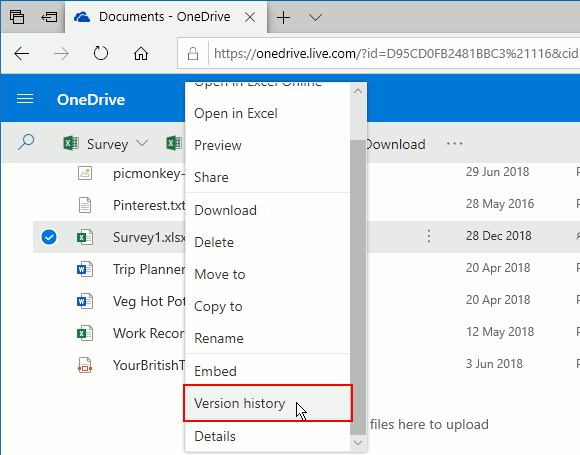
Open a web browser and go to onedrive.com. Open the folder containing the document, such as the Documents folder. Select a file using the checkbox to the left of the name and then click Version History in the toolbar. Alternatively, right click the file and then select Version history on the menu that appears.
The current version is listed along with the date and time it was created. Below this is a list of older versions. There may be none or half a dozen and it depends on how often you have edited the file and made changes.
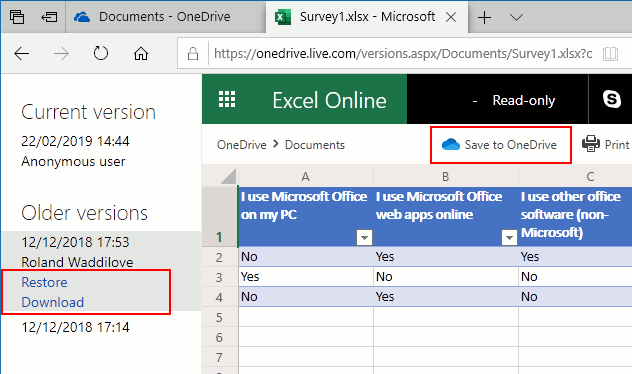
In the sidebar is the current version and older versions. Each has a date next to it so you can see when it was modified.
If you select a previous version by clicking on the date, there are options to Restore or Download it. If you restore it, it will become the current version. A better alternative is to download it and then you have the current version online and the previous version on your PC.
If you download it, you can always rename it and put it back on OneDrive by dragging the file from an Explorer window and dropping it on the browser window or in the OneDrive folder in Explorer on the PC.
An alternative is Save to OneDrive in the toolbar at the top. This gives you the opportunity to save the previous version to a different folder on OneDrive.
Restore previous versions in Windows
OneDrive syncs with the PC and so you may have a copy of the file on the PC’s drive. Some folders are automatically backed up by Windows every so often and you may be able to retrieve a previous version and access the document on the disk.
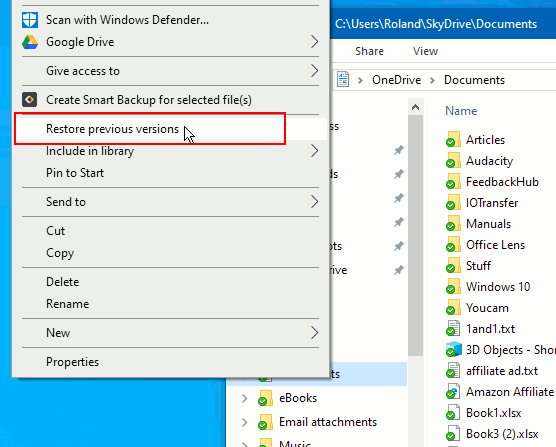
Right click a folder on the PC’s drive - OneDrive, Documents, Pictures, Music or Videos or a subfolder within these. On the menu that is displayed, select Restore previous versions.
In the window that appears, the Previous Versions tab is already selected and the backups of the folder are listed according to date. No software is needed for these backups and Windows automatically backs up your personal folders when it creates restore points.
Select a previous version of the folder and use the two buttons at the bottom to open it or restore it.
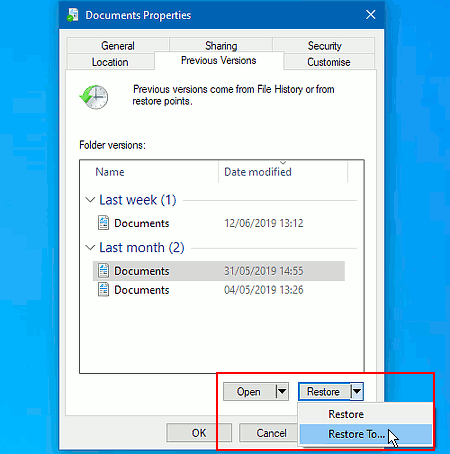
Simply restoring a folder would restore all the contents, which might replace other files you want to keep in the folder with older versions, so don’t use it! The best option is to click the down arrow to the right of Restore and select Restore To… This enables you to save a copy of this backup elsewhere.
Be the first to comment