It is a constant and never ending battle between malware makers and security software. Don’t ignore security when using the internet, use these tools and tips to avoid malware or remove it.
Private browsing at last! Work, stream and play online on up to 6 devices - PC, Mac, iPhone, Android and more. Save up to 70% with NordVPN.
There are many security tools that protect your from malware infections like viruses and Trojans, and there are also many removal tools and technique should the worst happen and your Windows PC or browser is infected. Here I take a look at a few of them and knowing where to find tools and how to fix security problems are essential skills these days.
There has been a battle between security software and malware authors for many years. Malware authors create increasingly intelligent viruses and other malware, and security software quickly learns how to deal with these new threats.
If you think you might have malware on the computer, you could use a utility like GlassWire to view network activity. However, it does require a fair bit of knowledge to understand and it is not a tool for novices. If you need antivirus software, try Panda.
One of the things that some types of malware do is to disable any security software that is running. This is so that you cannot run a virus scan and clean up the infection. Malware can prevent you from running tools like Task Manager, from downloading antivirus and cleanup tools, and so on.
To prevent you from using Malwarebytes Anti-Malware to clean up a computer for example, (the free version can do this), the malware might block any attempt to download the security software, to run the setup program if you did manage to download it, or even to run the program after it has been installed.
Malwarebytes Chameleon
Malwarebytes Chameleon is a free utility that is designed to get around this problem. It is a zip file and after extracting the contents, there is a list of programs, such as Firefox.com, iexplore.exe, rundll32.exe and so on.
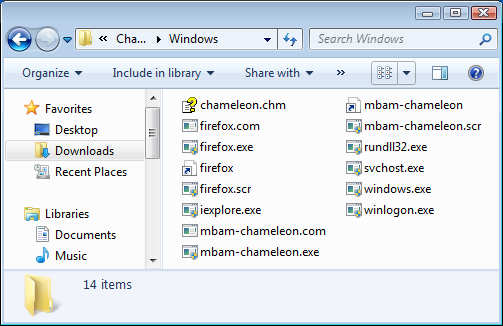
You can use any of these programs because they actually all perform the same function. The reason why there are so many and why they have the names they do, is to try to fool the malware. The Malware might think you are running Firefox or a Windows system file from looking at the filename. None of the files look like security software, so the malware doesn’t block them.
These programs open a command prompt window and then they download Malwarebytes Anti-Malware in a way that will not be detected by malware, and so it will not be blocked.
After downloading the security program, known malicious processes are killed, and Anti-Malware is run automatically. It scans the disk and removes viruses and other malware.

It is useful to keep Chameleon on the disk and to update it occasionally so that it is the latest version. If your PC is ever infected, you can unzip it and run it to clean the system.
Malwarebytes AdwCleaner
The other useful free tool from Malwarebytes is AdwCleaner, which is designed to clean up adware on Windows PCs.
There is no installation, just run the downloaded program. There are some advanced settings for those that like to tinker with the scanning engine and cleanup options, but most people will be fine with the defaults. As it says on the home screen, it finds adware (unwanted adverts), PUPs (potentially unwanted programs) and preinstalled software (manufacturers often bundle unwanted programs with new PCs).
Chrome safe browsing
Google knows a lot of websites because of search and it knows a lot of bad ones that contain malware. Chrome can protect you from these bad websites by checking that a site is safe before you even go there using a feature called Safe Browsing.
It is probably already enabled, but you should check to make sure. Click the three dots in the top right corner of Chrome to open the menu and select Settings. Select Privacy and security on the left, expand the More section and check that the Safe Browsing switch is on.
Scan for malware with Chrome
Did you know that Chrome has a built-in malware scanner and remover? Not a lot of people do, but it is true and you can use it to make sure Chrome browser is clean and malware free.
- Open the menu in Chrome
- Click Settings
- Scroll down to the bottom
- Click Advanced
- Scroll down to the bottom
- Click Clean up computer
- Click Find
Extensions can contain malware, spyware or adware and you must be cautious with them. Google tries hard to keep bad extensions out of the Chrome Web Store, but does not always succeed and somehow they still seem to sneak in. Stick with well known extensions and read the user reviews sorted by date with the most recent first. They may alert you to problems.
Chrome security extensions
You might want to add a security extension to Chrome and many of the well know security software providers have one. Avoid unknown extensions and developers. They may be good, but it is hard to tell unless you are an expert. Here are some Chrome security extensions worth considering.
Or just not pull a stupid and you’ll be fine.