
If you have a backup of the PC’s disk drive, how do you restore it if your PC will not start? Here is a guide to creating recovery media, booting the computer from it and restoring a backup.
This is the third in a short series of articles showing how to back up the disk in the PC to an external USB drive using Paragon Backup & Recovery 16, which is free until the end of October.
You do have a backup plan don’t you? Here are two guides to backing up the disk:
- How to back up your Windows PC using a brilliant free backup tool
- Create daily backup jobs to protect files on a Windows PC
If you have followed either of those two guides and have a backup, you need to know how to restore them. In the event of a disk disaster in which the computer fails to start, recovery media can be used to boot up the PC and restore the backup.
In this guide I am going to use a USB thumb drive (pen drive or USB flash memory drive - they all mean the same thing). It needs to have a capacity of at least 1GB and it will be erased, so don’t use one that has valuable files on it.
Create recovery media
1 Run Paragon Backup & Recovery 16
Start Paragon Backup & Recovery 16 and select the Home tab at the top.
In the left panel, select Recovery Media Builder and click Next.

2 Select the target
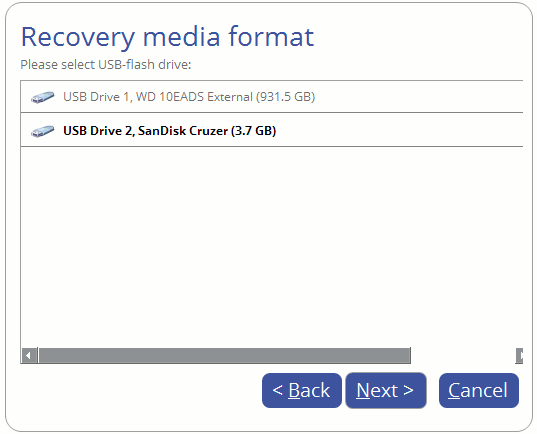
On my PC, USB Drive 1 is 931.5 GB and it contains backups of the PC’s internal boot disk. USB Drive 2 is a SanDisk Cruzer, a 3.7 GB thumb drive and I will be using it for the recovery media.
The drives on your PC will be named differently. Select the drive to be used for the recovery media.
3 Build the media
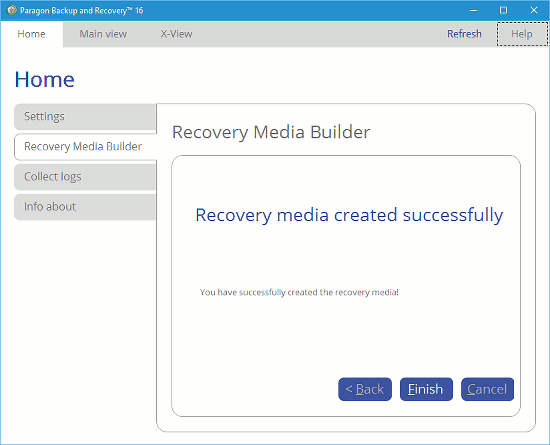
There are no more options and the thumb drive is turned into a recovery drive. Put it somewhere safe and hope you never need to use it.
Restore the disk from a backup
Let’s suppose there is a serious problem with your PC’s disk and the system will not start. Restoring a backup could solve the problem.
Sorry about the bad photos from here on. There’s no way to take screenshots and you have to take photos of the computer screen with a camera (I used my phone). The screens look better in real life.
4 Start the PC
Plug in the recovery media thumb drive you created and start the computer.
A second or two after starting, press the key to select the boot media. Different PC manufacturers use different keys and if you don’t know it, you might need to search Google.
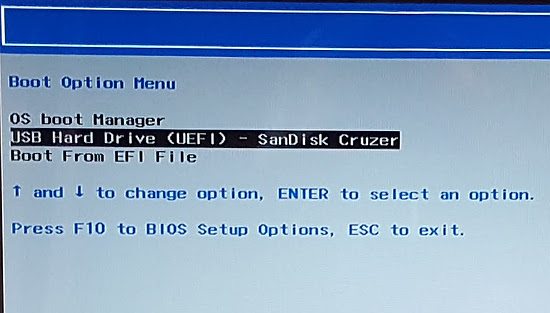
My HP laptop uses F9 and when it is pressed at just the right time after switching on the PC, a menu is displayed. The SanDisk Cruzer thumb drive can be selected to start the computer. The menu on your PC might look different, but one way or another it is possible to get a boot menu like this.
5 Select the Restore tile
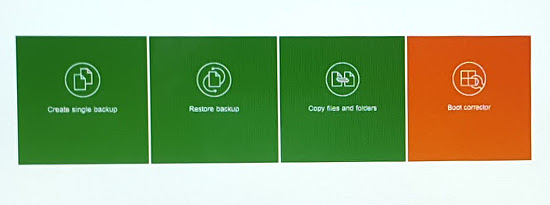
Paragon Backup & Recovery 16 appears on the screen and displays a menu consisting of four tiles. Select Restore Backup.
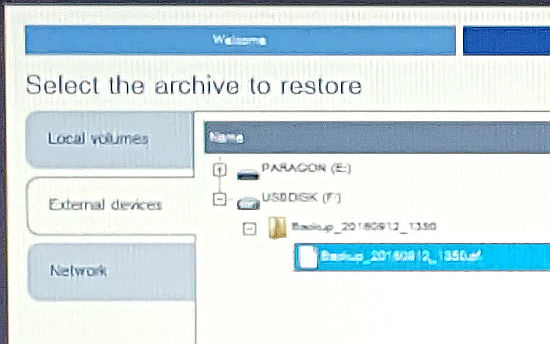
6 Select the backup
Find and select the backup. Mine is on USBDISK (F:), but yours could be on a different disk with a different drive letter. It is straightforward and should not be a problem.
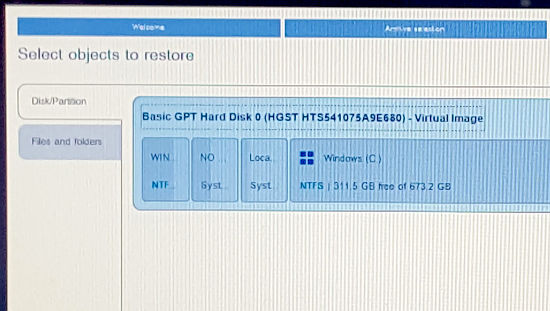
7 Choose what to restore
The contents of the backup is displayed and you can choose what to restore. I have a complete image of the PC’s internal disk and can select the whole disk or a partition to restore. (There’s another tab to restore files and folders instead.)
8 Select the target
After selecting the backup, you now select the target - where you want to restore to. In my case I selected the whole disk in the backup and will restore to the whole disk in the computer.
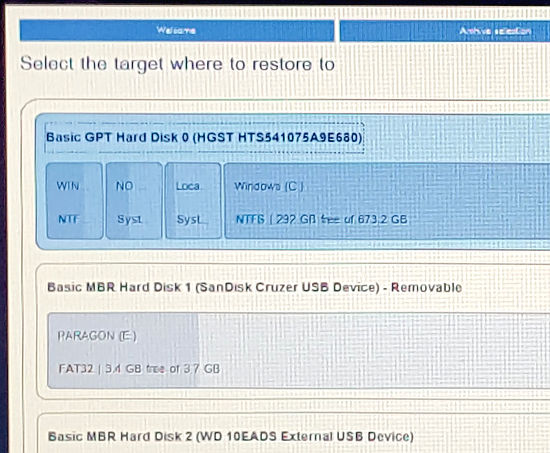
The restore is set up and all that remains is to start it off. Here I am going to quit because my PC is fine, but it is a good idea to go through all this to make sure it works and that you know how to use the recovery media tools.
Be the first to comment