
Protect your PC with Windows Defender - Check Defender is running
Windows 10 Security Guide > Protect your PC with Windows Defender
Check the status of Windows Defender
1 Open Windows Settings
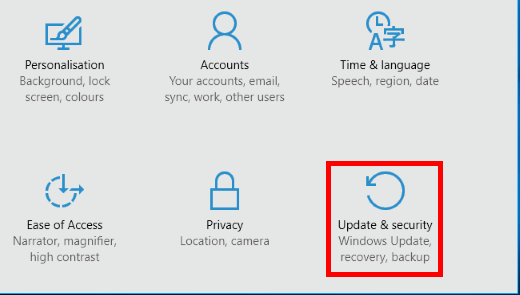
To check whether the security is active, click the Start button and then click the gear icon (Settings). Alternatively, hold down the Windows key and press I. Click Update & security.
2 Select Windows Defender settings
Select Windows Defender in the list on the left and on the right is Real-time protection and Cloud-based Protection. Make sure that both switches are on (except when running third party security software when it is OK for them to be off).
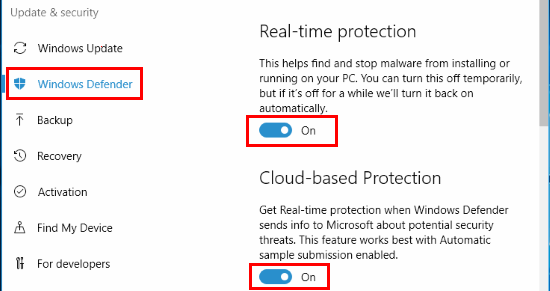
Real-time protection: This means that Windows Defender constantly runs in the background and watches for malware and suspicious behaviour by software.
Cloud-based protection: When this is on, suspicious files that are suspected of being malware are uploaded to the internet where they can be checked more thoroughly by more powerful security software.
Scroll down and there are more settings.
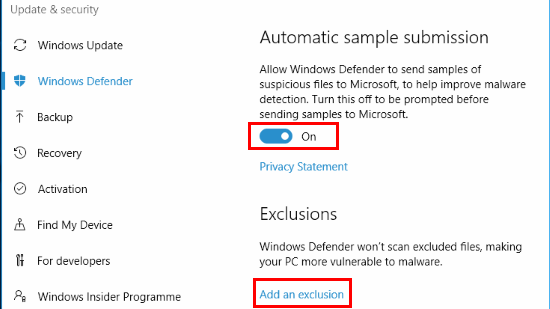
Automatic sample submission: Suspicious files infected with malware are uploaded to Microsoft, which helps the company make Windows Defender more effective. It is recommended that you turn this on, but it is your choice. It will not affect the security of your computer whether it is on or off.
Exclusions: It is possible to prevent Windows Defender from scanning certain files and folders. It is rarely necessary, but if the program mistakes a file for malware and you are 100% sure it is safe, it could be excluded from scans. Click the link, Add an exclusion. It is normal for the exclusions list to be empty and it would be suspicious if it were not.
Next: How to update Windows Defender
Previous: Introduction to Protect your PC with Windows Defender
Course Contents: Windows 10 Security Guide
Leave a comment