
This is a tale of an external hard drive that would not appear in Explorer and could not be seen or used. It was working fine, then one day it wasn’t there. What happened? Here is how to fix it.
Whenever I have a problem I always write it up and post it here just in case other people are experiencing the same difficulties. It would be unusual if I was the only person in the world with this problem, so if you are having difficulties accessing a USB disk drive in Windows, read on. One possible solution is here.
The USB drive in question was used for backups, so it was plugged into the PC every week or so, so that a backup could be made. See these backup articles: How to back up with a free utility, Create daily backup jobs, How to restore a backup.
It was plugged in today and no disk appeared in Explorer and no drive icon was visible. The drive looked dead, although it felt like it was running. (You can sometimes feel a small vibration with external USB drives, and they also get warm after a while.)
Unplugging it and plugging it back in made no difference. Swapping USB sockets it was plugged into made no difference. Powering off the drive and the PC and restarting had no effect. The external disk drive was not working.
Maybe it was working! Windows cannot see disks that are not formatted and have not been allocated a drive letter. But there is a way to access them so they can be prepared for use.
Explorer
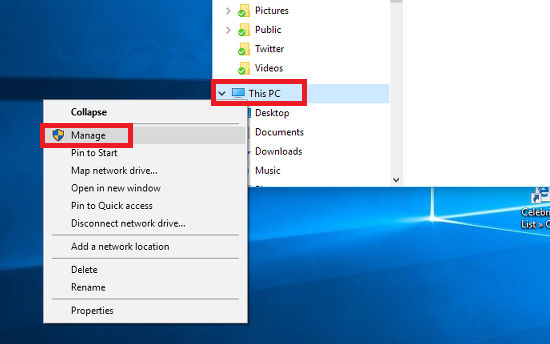
Open Explorer, right click This PC and select Manage on the menu that is displayed
Computer Management
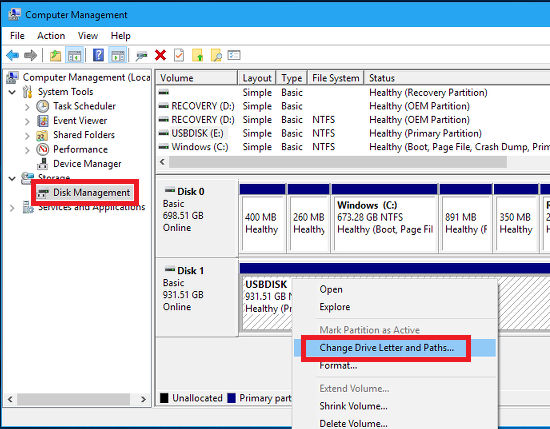
When the Computer Management window opens, select Disk Management on the left.
Disk 0 is the internal disk drive with Windows and Disk 1 is the external USB disk drive. The disk is there, but for some reason it was not being detected.
Right clicking it brought up this menu with an option to Change Drive Letter and Paths.
Assign a drive letter
This window opens and if no drive letter is assigned, and none was, clicking the Add button enables you to choose a drive letter. This can be any unused letter, so if C: is the internal disk, D: is the DVD drive, E: can be the USB drive.
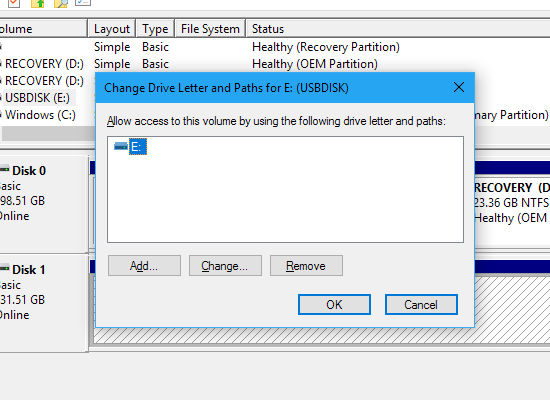
After assigning a drive letter, the USB disk appeared in Explorer and could be accessed as usual.
It is strange that the drive disappeared. It has always been drive E: and has been used for over a year. For some weird unfathomable reason Windows forgot about this drive and thought it didn’t exist.
It is working fine now.
Be the first to comment